
Flavors Smart Rings
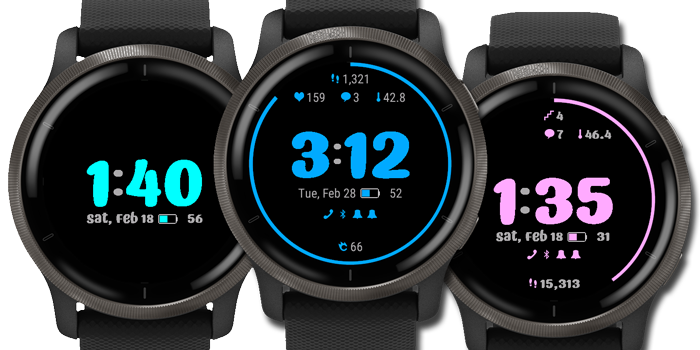
This is a simple, fun, modern smart watch face that has a ring around the edge that shows your calories, steps, floors, active minutes, or seconds and can automatically change colors. In my opinion, it has a great "Always On" mode. I made this watch face for everyone: men, women and kids.
Links (and How-Tos):
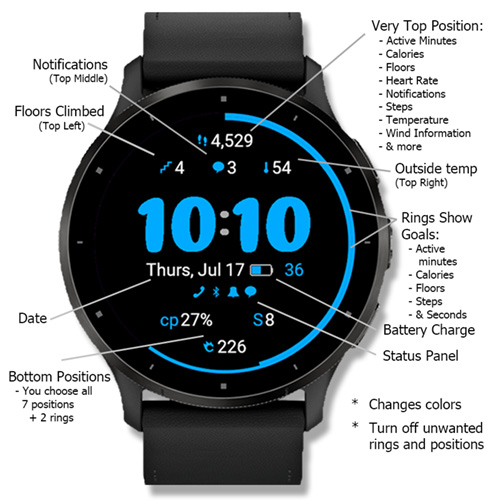
The Location of the Positions
The picture above shows the locations of all 5 positions.
The Meaning of the Settings
- App Version
- This is just to show the version of the watch face that is currently installed, so it isn't editable.
- This is just to show the version of the watch face that is currently installed, so it isn't editable.
- Font Type
- This allows you to change the font. Right now there are only two fonts: the regular and the system font.
- This allows you to change the font. Right now there are only two fonts: the regular and the system font.
- Font Size
- This allows you to change the text size for the non-time characters such as the date, steps, calories, etc.
- This allows you to change the text size for the non-time characters such as the date, steps, calories, etc.
- Color
- This Allows you to change the primary color of the watch face. Currently, the secondary color (gray) is not editable.
- The colors that you can select are:
- Red, orange, yellow, green, blue, cyan, purple, and pink.
- Red, orange, yellow, green, blue, cyan, purple, and pink.
- Color Mode
- This changes the color once per minute, unless you have the timer activated.
- You are able to select:
- Off - Do not allow the watch face to change colors at all.
- Random Mode - Randomly change colors to all colors (colors listed above).
- Manly Random Mode - Randomly change colors to all colors, except pink and purple.
- Step Through Colors - Cycles through all colors in the order listed above.
- Manly Step Through Colors - Cycles through all colors except pink and purple.
- The Ring Shows - This selects the subject of the circle that goes around the edge of the watch face.
- The ring illustrates the percentage of completion of a goal, except Seconds.
- When the goal is 100%, or beyond, the circle will be a complete circle.
- Steps Goal - Shows your steps goal for the day.
- Active Minutes Day Goal - Shows your active minutes goal for the day.
- Do not forget to enter a Active Minutes Day Goal below in the settings after the positions.
- Do not forget to enter a Active Minutes Day Goal below in the settings after the positions.
- Active Minutes Week Goal - Shows your active minutes goal for the week.
- Calories Goal - Shows you calories goal for the day.
- Do not forget to enter a daily calorie goal below in the settings.
- Do not forget to enter a daily calorie goal below in the settings.
- Floors Goal - Shows your floors goal for the day.
- Seconds - Represents the second for the current minute.
- Steps Goal - Shows your steps goal for the day.
- The ring illustrates the percentage of completion of a goal, except Seconds.
- The Very Top Position Shows - Allows you to select what information you want to show in the top-most position.
- The options are currently: Off, Active Minutes (Day), Active Minutes (Week), Calories, Floors, Heart Rate, Notifications, Steps, Temperature, and Wind Information.
- The very top position is the very first position from the top.
- The Top Left Position Shows - Allows you to select the information you want to in the position second from the top and furthest to the left.
- The Top Middle Position Shows - Allows you to select the information you want to in the position second from the top and in the middle.
- The Top Right Position Shows - Allows you to select the information you want to in the position second from the top and furthest to the right.
- The Bottom Position Shows - Allows you to select the information you want in the bottom position.
- The bottom position is the position closest to the bottom.
- The bottom position is the position closest to the bottom.
- Active Minutes Day Goal - This is where you enter your daily active minutes goal to be used in conjunction with the The Ring Shows >> Active Minutes Day Goal setting.
- The default active minutes goal is 20 minutes.
- The default active minutes goal is 20 minutes.
- Calorie Goal - This is where you enter your daily calorie goal to be used in conjunction with the The Ring Shows >> Calories Goal setting.
- The default calorie goal is 2500.
- The default calorie goal is 2500.
- Timer - This is a timer that allows the color of the watch face to change every (n) seconds. It uses what you selected from the Color Mode.
- Please note that the timer is started when the watch face is active and not in low power (always on) mode.
- Please note that the timer is started when the watch face is active and not in low power (always on) mode.
- Show Status Panel - Allows you to show or hide the status panel.
- Temperature Is In - Allows you to change whether the outside temperature is in Fahrenheit or Celsius.
- Wind Speed Is In - Allows you to change whether the wind speed is in miles per hour or meters per second.
- Show Notifications - Allows you to show or hide notifications that come from your phone.
- Force English For Date - This is a trick that prevents your watch from automatically translating the date line (month and week day) for users whose native language is not English and would rather that it be in English.
Reset the Settings
To reset the settings you can just uninstall it and reinstall it, but here is a list of the defaults:
- Font Type - System
- Font Size - Regular
- Color - Blue
- Color Mode - Manly Step Through
- The Ring Shows - Steps Goal
- The Very Top Position Shows - Steps
- The Top Left Position Shows - Heart Rate
- The Middle Position Shows - Notifications
- The Top Right Position Shows - Temperature
- The Bottom Position Shows - Calories
- Active Minutes Day Goal - 20
- Calorie Goal - 2500
- Timer - Off, Seconds 9
- Show Status Panel - On (checked)
- Temperature Is In - Fahrenheit
- Wind Speed Is In - Miles Per Hour
- Force English For Date - Off (not checked)
Install It
* Note: installing it using a web browser is very similar from a computer or a mobile device
Using a web browser go to apps.garmin.com
- Sign in to their website.
- Search for "Flavors Smart Ring".
- Click on "Flavors Smart Ring".
- Once it opens, there should be a blue button that says, "Download". Click on it.
- Next it will ask you to accept the terms. To continue you need to accept them by clicking, "Accept Terms".
- Next it will ask you to confirm which device you want to install it.
- Select your device and click "Confirm Device".
- Now you will see a message that says, "Got it! Flavors Smart Ring will be installed the next time your device syncs."
- Sync your device to install the watch face.
- Use the mobile application "Connect IQ" or the PC application "Garmin Express" to change the watch face settings. Click here for instructions on how to change them.
Using the Garmin Express PC Application
You can initiate installing the watch face using Garmin Express, but you will still need to use a web browser to find and select it. Doing it this way may be advantageous if you plan on using Garmin Express to change the watch face settings.
- Plug your watch into the computer.
- Open the Garmin Express application.
- Click on your watch; it should be showing a green dot next to its name.
- Click on "IQ Apps".
- On the bottom right, click on "Get More Apps".
- It will open a browser.
- Follow the above steps
Uninstall It
Here are a couple ways:
1. Using the "Connect IQ" mobile application:
- In the bottom right, select "My Device"
- Then select "My Watch Faces"
- Under the "Installed" section you should see "Flavors Smart Ring"; select it.
- Now you should see two buttons, one called "Settings" and the the other "Uninstall". Select "Uninstall".
- Next will appear a button that says, "Install"; that's it.
2. Using the PC application called "Garmin Express":
- Plug your watch into the computer using your cable.
- Open the "Garmin Express" application.
- Next should appear a picture of your watch with a green dot next to it's name. Go ahead and click it.
- Now you should see something that says, "IQ Apps" with a subtitle, "Manage the apps on your xxxx". Click on it.
- Next there should appear a list of applications on your watch. You may need to scroll down to find the watch face you want to remove.
- To the far right of the watch face's name there is an X. Click on it.
- It should remove it and say "Removed" in green, afterward, followed by a cloud with an arrow in it.
- That's it.
Change the Settings
Here are a couple ways:
1. Using the "Connect IQ" mobile application:
- In the bottom right, select "My Device"
- Then select "My Watch Faces"
- Under the "Installed" section you should see "Flavors Smart Ring"; select it.
- Now you should see two buttons, one called "Settings" and the the other "Uninstall". Select "Settings".
- Next will appear a list of settings.
- When finished making changes, click on "Save" in the top right corner.
2. Using the PC application called "Garmin Express":
- Plug your watch into the computer using your cable.
- Open the "Garmin Express" application.
- Next should appear a picture of your watch with a green dot next to it's name. Go ahead and click it.
- Now you should see something that says, "IQ Apps" with a subtitle, "Manage the apps on your xxxx". Click on it.
- Next there should appear a list of applications on your watch. You may need to scroll down to find the watch face.
- Next to the watch face's name there are 3 dots. Click on them.
- The list of settings should pop up.
- When you're done changing the settings, click "save" to save the settings.